Affiliate disclosure: This guide may include affiliate links. If you buy through them, we may earn a commission at no extra cost to you.
Finding the best USB-C hub for dual-monitor home office use sounds simple until you hit your first setup failure. One monitor stays black. Refresh rates drop. Charging slows down. Ethernet disappears after sleep. Then you realize the hub is not always the problem. The mismatch between your laptop, cable, and display protocol is usually the real issue.
This guide is built to prevent that. Instead of random product hype, you will get a practical decision framework: what your laptop must support, which hub class fits your setup, what specs are non-negotiable, and which mistakes cause most returns. If you want two external screens that work reliably every day, this is the checklist to follow.
Quick verdict
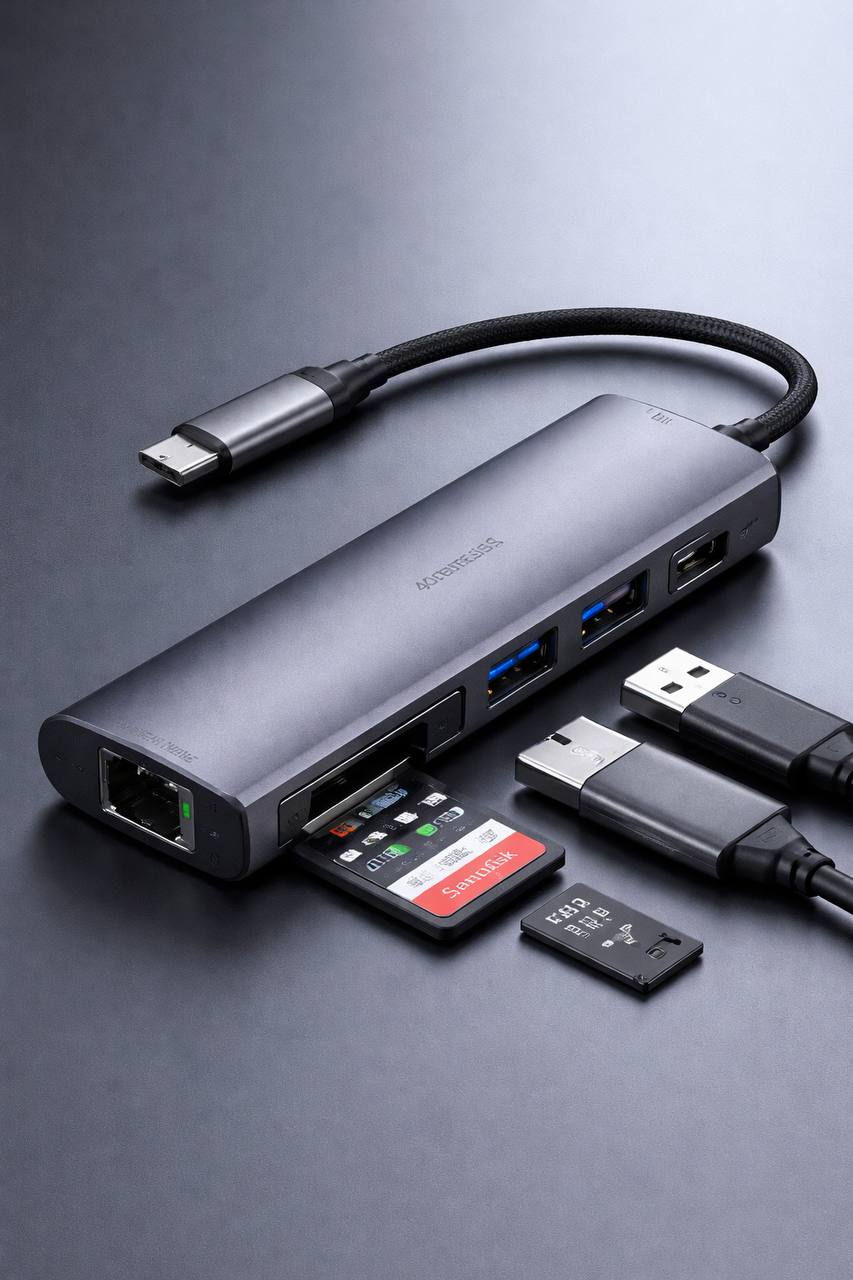
For most people, the best USB-C hub for dual monitors is a powered hub or dock with one HDMI + one DisplayPort output, 85W+ power delivery pass-through, stable thermals, and clear support for your operating system. If your laptop has USB4 or Thunderbolt support and you work on the desk all day, stepping up to a Thunderbolt dock usually gives the cleanest long-term experience.
- Best value for typical remote work: USB-C hub with HDMI + DisplayPort, solid power delivery, gigabit Ethernet.
- Best for heavy daily workloads: Thunderbolt 4 dock with stronger host charging and better display headroom.
- Best when your laptop has display-output limits: hub/dock options that support DisplayLink workflows.
- Avoid: ultra-cheap hubs with vague display claims like “4K support” but no dual-display details.
USB-C dual-monitor hubs at a glance (category comparison)
| Hub category | Best for | Typical monitor support | Power delivery range | The catch |
|---|---|---|---|---|
| Basic USB-C dual-video hub | Lighter office work, lower budgets | Dual external displays at mainstream resolutions | 65W-85W pass-through | Thermals and port stability vary widely |
| USB-C hub with HDMI + DisplayPort + Ethernet | Most home office desks | More flexible monitor compatibility than dual-HDMI-only hubs | 85W-100W pass-through | You still need laptop-side display protocol support |
| Thunderbolt 4 dock | All-day desk setup with heavier multitasking | Strong external display support with better bandwidth handling | 90W-100W+ host charging | Higher cost, sometimes overkill for light users |
| DisplayLink-capable dock/hub | Laptops with native display limitations | Adds dual-monitor options through software-assisted display output | Often 85W+ on full docks | Driver dependency and slightly higher complexity |
| Portable travel hub | Hybrid workers moving between desks | Dual-display support possible but usually limited under load | 45W-85W pass-through | Trade-off between size and reliability |
Before you buy: check these 4 laptop realities first
Most failed hub setups happen because people buy first and verify laptop display capability later. Do this in reverse.
1) Your USB-C port is not automatically a full display port
Some USB-C ports handle data and charging but do not output video properly for two external monitors. Others support video but with strict limits. Your hub can only pass through what your laptop port and graphics pipeline allow.
2) Dual-monitor support differs across operating systems and chip families
On some systems, two monitors via one hub is straightforward. On others, you may get one extended display and one mirrored display unless you use a specific dock type. If you are not sure, verify your exact model before checkout.
3) Resolution + refresh rate combinations change everything
“Supports dual 4K” on a product page may mean dual displays at lower refresh rates, or only under specific host and cable conditions. If you care about smoother motion, high refresh, or mixed monitor resolutions, read the matrix carefully.
4) Cable quality can break an otherwise good setup
A weak USB-C cable can cause flicker, random disconnects, or charging instability. Treat the host cable as part of the dock system, not a throwaway accessory.
What specs actually matter for dual-monitor reliability
- Clear dual-display claim: not just “4K supported,” but explicit dual external display modes.
- Video output mix: HDMI + DisplayPort is usually more flexible than dual HDMI-only layouts.
- Power delivery headroom: 85W+ for many modern work laptops, more if your machine is power-hungry.
- Gigabit Ethernet: still one of the easiest stability upgrades for remote work calls.
- Thermal behavior: metal housing and heat handling matter during full-day use.
- USB data ports: enough for keyboard, mouse, webcam, storage, and audio without daisy-chaining dongles.
- OS compatibility clarity: avoid hubs with vague wording around platform support.
- Firmware and support quality: undervalued, but important for long-term reliability.
Best USB-C hub types for dual-monitor home office setups
These are category picks, not single-brand recommendations. Pick your class first, then shortlist specific units that match your laptop and monitor pair.
1) USB-C hub with HDMI + DisplayPort (best all-round for most users)
This is usually the sweet spot: enough video flexibility, enough charging, and enough desk ports without paying full Thunderbolt-dock pricing. For many home office workflows (docs, browser tabs, calls, moderate multitasking), this class performs well when laptop compatibility is confirmed first.
- Pros: balanced cost, practical port mix, strong daily usability.
- Pros: works well with mixed monitor brands in many setups.
- Pros: usually compact enough for cleaner desk placement.
The catch: You still depend on what your laptop can output natively. If your machine has known external-display limits, this class may not fully solve it without alternative display workflows.
2) Thunderbolt 4 dock (best for heavy all-day desk use)
If you run two external screens all day, move large files, join frequent calls, and keep multiple accessories connected, Thunderbolt docks are usually the low-drama option. They cost more, but they often reduce the random friction that cheaper hubs introduce over time.
- Pros: stronger bandwidth handling and better long-session stability.
- Pros: often better build quality, power delivery, and cable retention.
- Pros: easier to scale as your desk setup grows.
The catch: price. If your workflow is light and your laptop is modest, you may not feel enough benefit to justify the jump.
3) DisplayLink-capable dock/hub (best when native display paths are limited)
This class is useful when your laptop’s native external display behavior does not match your dual-monitor goal. With correct software setup, DisplayLink-capable options can unlock workflows that standard pass-through hubs cannot.
- Pros: can enable practical dual-monitor setups on otherwise constrained machines.
- Pros: broad compatibility potential in mixed-device environments.
- Pros: useful fallback for older or limited-port laptops.
The catch: driver dependency and setup complexity. If you want pure plug-and-play with zero software layer, this may not be your favorite path.
4) Dual-HDMI budget hub (best for low-cost, low-complexity builds)
These are tempting because they look simple and cheap. They can work in straightforward office setups, especially when you already use two HDMI monitors and moderate resolutions.
- Pros: low cost of entry.
- Pros: easy cable matching when both monitors are HDMI-first.
- Pros: compact footprint.
The catch: many budget dual-HDMI hubs have weaker thermals, weaker charging performance, and less transparent support matrices. Great when it works, frustrating when it does not.
5) Portable hybrid hub (best for hot-desk + travel routines)
If you split time between home, office, and travel, portability matters. A compact hybrid hub can be a smart compromise for people who cannot leave a full-size dock on one desk.
- Pros: one accessory across multiple locations.
- Pros: easy to pack and redeploy.
- Pros: enough I/O for many mobile workflows.
The catch: small form factor often means thermal and power compromises. For full-day dual-monitor use, desk-first hardware still tends to be more stable.
How to choose the right hub in 10 minutes
- Confirm your laptop model and external-display behavior. This prevents 80% of bad buys.
- Write your monitor targets clearly. Example: “2 external displays, both extended, stable for daily office use.”
- Pick your output mix. Prefer HDMI + DisplayPort flexibility unless your monitors force a specific layout.
- Set charging requirement. Match or exceed your laptop’s typical power draw envelope for desk use.
- Count all ports you actually use daily. Keyboard, mouse, webcam, audio, Ethernet, storage.
- Choose by reliability tier, not only price tier. Replacing a bad hub twice costs more than buying one good unit.
- Check return policy and test window. Always validate with your real workflow in the first week.
Common setup mistakes (and how to avoid them)
- Buying from headline claims only: “4K support” is meaningless without dual-display details.
- Ignoring laptop display constraints: verify host capability before reading hub marketing.
- Underpowering the system: weak pass-through charging creates battery drain under load.
- Using low-quality cables: random signal drops are often cable failures, not hub failures.
- Skipping firmware/driver context: some dock types require current software for stable behavior.
- Overloading a tiny travel hub: full desk workloads deserve desk-grade hardware.
- No Ethernet fallback: unstable Wi-Fi can make a good monitor setup feel broken during calls.
Troubleshooting checklist when one monitor does not work
- Power-cycle the dock/hub and reconnect host cable firmly.
- Swap monitor cables and ports to isolate display-side vs port-side issues.
- Test each monitor one at a time from the hub outputs.
- Confirm monitor input source manually (HDMI/DP auto-detect can fail).
- Check OS display settings for mirror vs extend behavior.
- Update dock software or required drivers when applicable.
- Test with a known high-quality USB-C host cable.
- If instability persists, reduce complexity: disconnect non-essential peripherals and retest.
For broader desk stability improvements, these setup guides can help:
- Home Office Desk Setup: Layout, Monitor Position, and Cable Flow
- Best Monitor Arm for Ultrawide: What Actually Works
- Best Under-Desk Cable Tray for Home Offices
- Best Monitor Light Bar for Eye Strain
- Best Home Office Setup: Practical Checklist by Budget
Which hub type should you buy? (scenario guide)
If you work in docs, browser tabs, calls, and spreadsheets all day
Start with a reliable USB-C hub/dock class that provides HDMI + DisplayPort, gigabit Ethernet, and strong pass-through charging. This is usually the best value point for practical remote work.
If you run heavier multitasking with large files and multiple accessories
Thunderbolt 4 dock class is usually worth it. Better bandwidth behavior and stronger power handling reduce random friction over long sessions.
If your laptop has known external-display limitations
Look at DisplayLink-capable options and confirm your OS workflow before buying. It adds one layer of setup, but can unlock practical dual-monitor outcomes when native options are constrained.
If you travel frequently and still need occasional dual-screen desk mode
A portable hybrid hub can work, but keep expectations realistic. For full-time dual-screen reliability, a desk dock is still the stronger long-term choice.
7-day validation plan after you buy
If you want fewer return headaches, run a short validation cycle during your return window. This catches hidden issues before you commit your entire desk to one dock.
- Day 1: Basic boot test. Connect both monitors, keyboard, mouse, Ethernet, and power delivery. Confirm you can run for one hour with no random disconnect.
- Day 2: Sleep/wake reliability. Put the laptop to sleep and wake it several times. Verify displays reconnect cleanly without rearranging windows every cycle.
- Day 3: Call stability test. Run a long video call while both monitors are active and a few peripherals are connected. Watch for flicker, audio drops, or Ethernet instability.
- Day 4: Thermal check. Use your normal workload for half a day. If the hub gets excessively hot or ports start behaving inconsistently, treat it as a warning sign.
- Day 5: Cable sensitivity test. Gently reseat each cable to verify connection tolerance. Good hubs should not fail from normal desk movement.
- Day 6: Charging behavior test. Confirm battery percentage is stable or increasing during your normal work profile.
- Day 7: Real workflow audit. Decide whether the setup is genuinely smoother than your previous arrangement. If daily friction still feels high, return and move up one reliability tier.
This one-week check takes less time than troubleshooting a bad hub for the next six months. Reliability is the point of a dual-monitor dock. If it cannot deliver that in week one, it probably will not improve in month three.
FAQ: best USB-C hub for dual-monitor home office use
Can any USB-C hub run two external monitors?
No. Both your laptop and the hub must support the right display pathways. “USB-C” alone does not guarantee dual external monitor support.
Is Thunderbolt required for dual monitors?
Not always. Many non-Thunderbolt USB-C hubs can run two displays in supported setups. Thunderbolt usually improves headroom, flexibility, and long-session stability.
Why do I get mirror mode instead of two extended displays?
This usually happens when your host system has display-output constraints or unsupported output combinations. Verify host compatibility and monitor mode settings first.
What power delivery should I look for?
For many work laptops, 85W+ pass-through is a safer baseline for desk use. If your system draws more under load, target higher-power dock classes.
Does HDMI + DisplayPort beat dual HDMI?
Often yes. Mixed-output hubs are usually more flexible with monitor combinations and desk upgrades. Dual HDMI can still be fine when both displays are simple HDMI workflows.
Do I need Ethernet on a desk hub?
If you take frequent calls or rely on stable cloud tools, Ethernet is strongly recommended. It removes one major reliability variable from your setup.
Are cheap hubs always bad?
Not always, but inconsistency is higher. If this is your primary work setup, reliability usually matters more than saving a small amount upfront.
What if my second monitor flickers randomly?
Start with cable quality, monitor input selection, and host-cable stability. Flicker is often a signal integrity issue before it is a dock failure.
External references
Final verdict
The best USB-C hub for dual-monitor home office use is the one that matches your laptop’s real display capabilities, not the one with the most aggressive marketing headline. For most users, a reliable HDMI + DisplayPort desk hub with strong charging and Ethernet is the practical sweet spot. If your workflow is heavier or your setup is mission-critical, Thunderbolt-class docks usually justify the upgrade.
Before you buy, verify host compatibility, choose the right hub category, and test your exact monitor pair in the return window. That process is what saves time, money, and daily frustration.
Leave a Reply